

Html: Syntax, Purpose, Semantic Elements, Document Structure, Mobile Responsiveness, Accessibility, Versions, SEO Markup, Requirements
Html is the standard markup language that describes the structure and content of web pages using elements and attributes. Key aspects include purpose, syntax, document structure, semantic elements, accessibility, mobile responsiveness, SEO markup, versions, and requirements. Your browser reads the tags in an html file and turns them into headings, paragraphs, images, links and forms that you see on screen. In website design, this markup forms the base layer that CSS styles and JavaScript makes interactive. Whether you are studying website design jacksonville projects or pages built anywhere else, every site depends on the same set of elements and rules. This article explains the purpose of the language, its syntax, the structure of a document, the semantic elements that give content meaning, and the accessibility practices that help you build pages everyone can use.
Key Takeaways
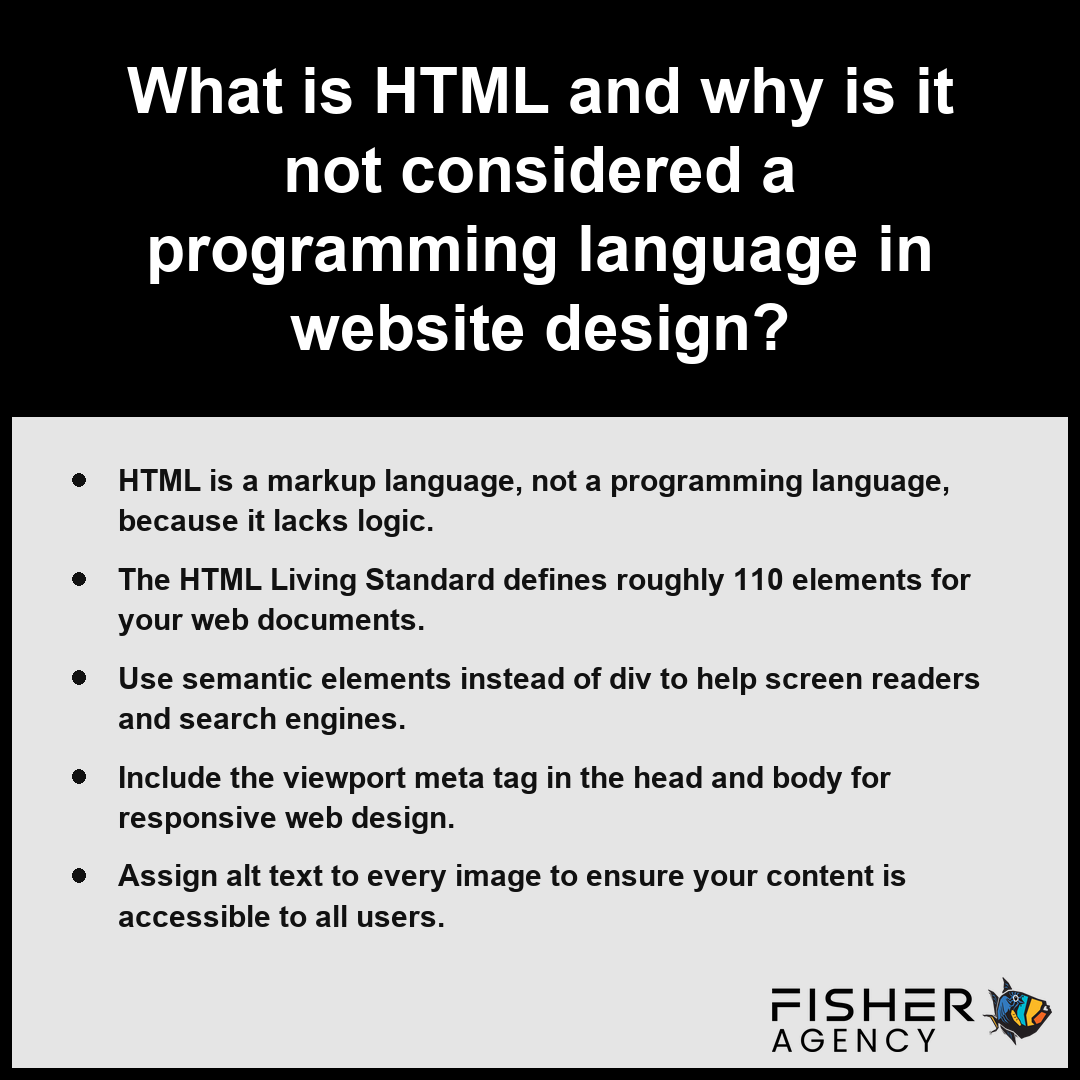
- HTML is a markup language, not a programming language, because it lacks logic.
- The HTML Living Standard defines roughly 110 elements for your web documents.
- Use semantic elements instead of div to help screen readers and search engines.
- Include the viewport meta tag in the head and body for responsive web design.
- Assign alt text to every image to ensure your content is accessible to all users.
What Is HTML, and Why Is It Not a Programming Language in Website Design?
HTML is a markup language that defines the structure and meaning of content on web pages, but it is not a programming language because it contains no logic, loops, or variables. According to the World Wide Web Consortium, HTML is defined as a markup language meant for structuring web content rather than a programming language used to execute logic or complex computations. While you might use it to organize information, you cannot use it to perform computational tasks like complex calculations or dynamic data processing. Instead, HTML serves as the skeleton of a web page that browsers parse into a Document Object Model (DOM), which CSS and JavaScript then manipulate to provide presentation and behavior.
| Evolutionary Milestone | Document Purpose | Element Count | Computational Capability |
|---|---|---|---|
| 1991 Specification | Basic document structure | 18 | None (Declarative) |
| HTML Living Standard | Dynamic web application skeleton | 110 | None (Structural only) |
HTML Evolution (Number of Elements)
The standard has evolved significantly since the first public description of HTML in 1991, which listed about 18 elements. Today, the HTML Living Standard defines roughly 110 elements to help you structure diverse types of information. Because it lacks logical instruction sets, it remains a declarative language rather than a functional one. The following list summarizes why this distinction matters for your workflow:
- No Logic: You cannot create conditional “if-then” statements or execute mathematical functions within the markup.
- Static Interpretation: Browsers do not compile HTML into machine code; they interpret the markup to render elements visually.
- Separation of Concerns: Your structural markup handles content definition, while separate files manage appearance and interactivity.
- Fault Tolerance: Unlike strict programming languages that fail on syntax errors, browsers attempt to render malformed markup by error-correcting the document structure.
Verify that your content structure relies solely on descriptive markup and offloads all logical processing to your scripts.
Understanding this distinction is essential for web developers for the following reasons:- Separation of concerns ensures that structure, styling, and logic remain independent for better maintainability.
- Declarative syntax enables browsers to optimize rendering and accessibility features automatically.
- Clear boundaries prevent the misuse of markup for tasks that require the performance and security of client-side scripting.
- Standardized structures facilitate consistent interpretation across diverse hardware and assistive technologies.
What Does the Basic HTML Document Structure Look Like, From Doctype to Head and Body?
The basic HTML document structure is a standardized hierarchy that begins with a declaration and organizes content into two distinct segments to ensure browsers correctly interpret the information. Every file must adhere to this predictable arrangement so that the Document Object Model (DOM) can be generated consistently across different platforms.
| Document Hierarchy Component | Primary Functional Responsibility | Implementation Priority |
|---|---|---|
| <!DOCTYPE html> | Triggers browser standards mode via Living Standard declaration | Absolute First Line |
| <html> | Provides the root container for the Document Object Model | Document Root |
| <head> | Encapsulates non-visible metadata, titles, and responsive viewport settings | Primary Container |
| <body> | Hosts all rendered content, including interactive elements and media | Primary Container |
| Validation Suite | Ensures structural integrity and standards compliance prior to external asset integration | Pre-Deployment |
- Start the file with the <!DOCTYPE html> declaration to inform the browser that the page follows the HTML Living Standard. Per the World Wide Web Consortium, this declaration must appear as the very first line of the document to ensure that browsers render the page in standards mode.
- Open the root <html> element, which acts as the container for every other element within the document.
- Place the head and body segments inside the root <html> element, ensuring they appear in the correct sequential order.
- Input metadata, such as the viewport meta tag for responsiveness and the <title> element, inside the <head> container.
- Enclose all visible content, including headings, paragraphs, and media, within the <body> element.
Validate your file against the current HTML Living Standard to ensure your document hierarchy is error-free before adding CSS and JavaScript.
To ensure optimal cross-browser compatibility and structural accuracy, follow these essential development practices:- Define the language attribute within the root <html> tag to assist screen readers and search engine indexers.
- Include a <meta charset=”UTF-8″> declaration within the <head> to ensure correct character encoding for international text.
- Place all external stylesheet links within the <head> to prevent flash-of-unstyled-content issues during initial page load.
- Position external JavaScript files at the bottom of the <body> or use the “defer” attribute to avoid blocking the document’s critical rendering path.
How Do Elements and Attributes Work Together, and Which Elements Have No Closing Tag?
Elements and attributes work together in HTML by using the element to define the structure or type of content, while the attribute provides additional configuration or metadata in a name=”value” format. While most elements require both an opening and a closing tag to wrap content, the HTML Living Standard defines roughly 110 elements, including a specific set of void elements that serve their purpose without needing a closing tag. Per the World Wide Web Consortium, void elements are defined by the standard as having a start tag that must not be followed by an end tag because they are incapable of holding any content.
| Void Element | Primary Structural Purpose | Key Attribute Requirement |
|---|---|---|
| img | Visual content embedding | src |
| br | Text flow interruption | N/A |
| input | User data interactivity | type |
| meta | Document metadata delivery | name / content |
| hr | Thematic section separation | N/A |
| link | Resource association | href |
| col | Table column configuration | span |
| source | Media format selection | srcset |
- img: Embeds an image file into the document using the src attribute to define the path.
- br: Inserts a single line break within text blocks without creating a new paragraph.
- input: Creates interactive controls for data entry, such as text fields or checkboxes.
- meta: Provides machine-readable metadata, such as the viewport meta tag for responsive scaling.
- hr: Represents a thematic break between paragraph-level elements.
- link: Connects external resources, typically CSS files, to the document.
- col: Specifies column properties within a table element.
- source: Defines multiple media resources for video or picture elements to support responsive design.
Validate your markup to ensure that every non-void element correctly pairs its opening and closing tags to prevent rendering errors in the Document Object Model (DOM).
Additional void elements serve specific roles in document structure and media management:- hr: Represents a thematic break between paragraph-level elements.
- link: Establishes a relationship between the current document and an external resource, such as CSS files.
- col: Defines properties for columns within a table element.
- source: Allows developers to specify multiple media resources for audio or video elements.
When to Use Semantic Elements Like Header, Nav, Main, and Article Instead of Div
You should use semantic elements instead of generic div containers to provide meaningful structure and context to your HTML markup language, which assists browsers and assistive technologies in accurately interpreting the Document Object Model (DOM).
| Semantic Element | Primary Structural Responsibility | Contextual Purpose |
|---|---|---|
| <header> | Introductory Branding | Encapsulates navigational aids and initial document context. |
| <nav> | Site-wide Orientation | Defines pathways for primary document navigation. |
| <main> | Core Content Delivery | Isolates the central subject matter unique to the page. |
| <footer> | Institutional Closure | Supplies supplemental data such as legal or contact info. |
| <div> | Stylistic Wrapping | Provides a neutral container when semantic meaning is absent. |
Which Semantic Elements Define Page Layout?
Semantic elements define page layout by replacing generic containers with descriptors that clarify the role of specific areas within your HTML. By using these descriptive elements, you transition from opaque blocks to a clear, hierarchical document structure.
- <header>: Contains introductory content or navigational links.
- <nav>: Identifies major navigation blocks for the site.
- <main>: Holds the primary content unique to the document.
- <footer>: Houses copyright, contact details, or site-wide information.
Which Semantic Elements Group Content?
You use semantic elements to group content by creating meaningful boundaries around related information, such as distinct articles or themed sections. These elements organize the information logically rather than just visually.
When Is Div Still the Right Choice?
The <div> element remains the right choice when you need a generic container for styling purposes or layout adjustments that possess no inherent semantic meaning. If no specific element in the HTML Living Standard applies to your grouping needs, <div> acts as a neutral wrapper that avoids misrepresenting your content to software.
How Do Semantic Elements Help Search Engines and Screen Readers?
Semantic elements help search engines and screen readers by providing a standardized map of your document. According to Web Accessibility Initiative, utilizing these semantic tags effectively creates an inherent document outline that boosts content discoverability and makes navigation more consistent for individuals who use assistive technologies. Search engines use these indicators to prioritize content within the Document Object Model (DOM) during indexing, while screen readers leverage these cues to allow users to jump directly to specific areas like the main content or navigation. Replacing <div> structures with these standards ensures that your page content is interpreted accurately by assistive technology and automated crawlers alike.
Audit your current layout to verify that every distinct region is wrapped in a descriptive element rather than a generic container.
Implementing these elements improves accessibility and developer experience through the following practices:- Use only one <main> element per page to clearly signal the unique core content to screen readers.
- Place <nav> elements strategically to distinguish between primary site-wide links and localized sub-navigation.
- Leverage these tags to allow search engine crawlers to parse the relative importance of specific content sections more effectively.
- Nest semantic elements logically to maintain a clear and predictable document outline for assistive technology users.
How Do You Make HTML Accessible With Alt Text, Native Buttons, and ARIA?
Making HTML accessible with alt text, native buttons, and ARIA involves implementing specific markup practices that ensure your content remains navigable for users relying on assistive technologies. These techniques bridge the gap between visual design and the logical requirements of screen readers, which interpret your HTML document to provide an equivalent experience for users with visual or motor impairments.
| Accessibility Technique | Primary Function | Implementation Rule |
|---|---|---|
| Alt Text | Visual Content Description | Provide descriptive labels for information; use empty strings for decorative assets. |
| Native Buttons | Interactive Triggering | Prioritize native elements for inherent keyboard focus and event management. |
| ARIA Attributes | Semantic Supplementation | Apply only when native HTML cannot define custom component roles or states. |
| Tab Navigation | User Path Verification | Ensure total reachability of interactive components via non-mouse input. |
| WCAG Standards | Compliance Benchmarking | Guarantee text alternatives for all non-text content to ensure full perception. |
- Alt text: Use the alt attribute on images to provide descriptive text, but set it to an empty string (alt=””) for decorative elements so screen readers skip them entirely.
- Native buttons: Prefer the <button> element for interactive triggers instead of generic containers, as native buttons automatically provide expected keyboard focus and event handling for screen readers.
- ARIA attributes: Apply Accessible Rich Internet Applications (ARIA) roles and states when native HTML elements cannot describe a complex custom component, such as setting aria-expanded=”true” to signal the state of a toggle. Per the World Wide Web Consortium, developers should use ARIA only to supplement HTML when native semantics are insufficient, while always prioritizing native elements whenever they can provide the required functionality.
- WCAG compliance: Align your markup with the requirement that all non-text content must have a text alternative to satisfy accessibility standards for users who cannot perceive visual cues.
Test your site by navigating exclusively with the tab key to ensure every interactive component remains reachable and provides clear feedback.
Follow these additional best practices to refine your accessibility implementation:- Use high-contrast color combinations to ensure text remains legible for users with low vision.
- Ensure all interactive elements have a visible focus indicator for keyboard users.
- Implement skip links at the top of your page to allow users to bypass repetitive navigation menus.
- Use descriptive link text instead of generic phrases like “click here” to provide context for screen reader users.
- Maintain a logical heading hierarchy (H1–H6) to assist users in understanding the page structure.
Frequently Asked Questions
Is HTML5 different from HTML, and does the HTML Living Standard mean there will be no HTML6?
Yes, the HTML Living Standard represents the current iteration, meaning there will be no numbered versions like HTML6. HTML5 became a W3C Recommendation in October 2014, but the standard is now maintained as a continuously updated document by the WHATWG rather than through periodic, numbered releases.
Why is my HTML page not mobile friendly and how do I fix it with the viewport tag and responsive images?
Your page lacks mobile responsiveness because you have not configured the viewport meta tag or adaptive assets. Include <meta name=”viewport” content=”width=device-width, initial-scale=1″> in your head. Additionally, use the srcset and sizes attributes or the <picture> element to serve appropriate image files based on the screen width.
How should I write the HTML title tag and meta description to improve how my page appears in search results?
You should keep the title element under about 60 characters and the meta description between about 150 to 160 characters for optimal display. These elements directly shape search result snippets, so use them to summarize your content accurately and help search engines interpret your page’s purpose effectively.
What do I need to start writing HTML, and is HTML free to use for building a website?
Yes, HTML is free to use for building any website. You only need a plain text editor to begin writing your document. Every page must start with the <!DOCTYPE html> declaration, followed by an <html> root that contains the required head and body sections to organize your content.
How do I check my HTML for errors like unclosed tags, duplicate ids, and invalid nesting using a validator?
You check your document by submitting your code to a validator, which ensures your markup follows the current rules. Since browsers automatically error-correct malformed code into the Document Object Model (DOM), using a validator is essential for identifying unclosed tags, duplicate ids, or invalid nesting within your HTML.