

Web Forms: Security, Field Count, Layout, Types, Accessibility, Validation, Input Elements, Mobile Usability, Submission Method

When researching “web forms”, the key factors are field count, security, types, layout, validation, accessibility, mobile usability, input elements, and submission method. When you fill in a form and submit it, the browser packages each field value and sends it to a server, which stores the data or triggers an action such as sending a message. Within website design, forms are the main way you let visitors contact a business, register, search, or complete a payment. Their usefulness depends on the number of fields, the field types used, the layout, the checks applied to your input, and the protection of submitted data. Businesses that publish pages for local searches such as web design near me in Tampa FL often rely on contact and quote forms as a primary point of interaction. The sections below explain field count, field types, layout, validation, and security in turn.
Key Takeaways
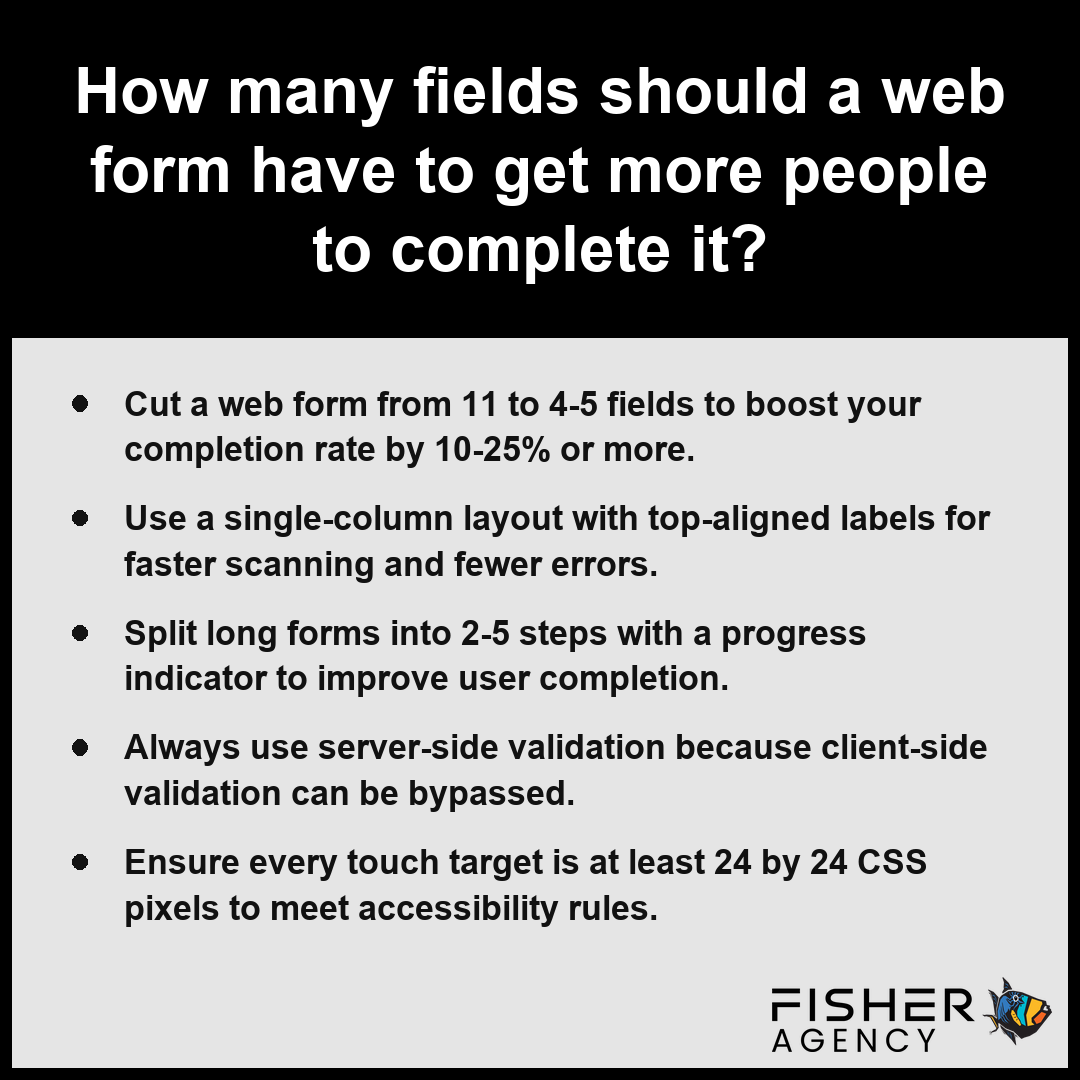
- Cut a web form from 11 to 4-5 fields to boost your completion rate by 10-25% or more.
- Use a single-column layout with top-aligned labels for faster scanning and fewer errors.
- Split long forms into 2-5 steps with a progress indicator to improve user completion.
- Always use server-side validation because client-side validation can be bypassed.
- Ensure every touch target is at least 24 by 24 CSS pixels to meet accessibility rules.
How Many Form Fields Should Web Forms Have to Boost Completion Rate?
To maximize your conversion gain, you should aim to keep the number of form fields in your web forms between four and five, as studies have shown this reduction from a baseline of around 11 fields can boost completion rates by roughly 10-25% or more. While your business needs may sometimes require more data, every additional field you add acts as a point of friction that increases the likelihood of a visitor abandoning the process.
| Optimization Metric | Baseline Impact | Performance Gain Potential |
|---|---|---|
| Standard Form Length (11 Fields) | High Friction | Baseline Performance |
| Optimized Form Length (4–5 Fields) | Reduced Friction | 10% to 25% Completion Lift |
| Complex Checkout Abandonment | 20% of Cart Drops | 17.5% Expected Recovery |
| General Cart Abandonment Rate | 70% Total Drop-off | Significant Conversion Recovery |
Form Abandonment Drivers and Impact
Reducing field counts is particularly critical for high-intent actions, such as finalizing a purchase, where the overall cart abandonment rate is near 70%. In these scenarios, roughly 18-22% of shoppers explicitly cite a long or complicated checkout process as their primary reason for leaving. Per Baymard Institute, studies of United States e-commerce sites show that excessive form length is a major contributor to cart abandonment, especially when users are asked to provide non-essential personal information. To strike a balance between gathering necessary information and maintaining a high completion rate, audit your requirements against these optimization strategies:
- Remove any optional fields that do not provide immediate business value.
- Use the autocomplete attribute to minimize the manual effort required for common inputs like names, email addresses, and payment details.
- Consolidate inputs where possible, such as using a single name field instead of separate inputs for first and last names.
- Review every field to determine if it can be inferred from context or populated automatically by your database.
Audit your current data collection requirements by identifying and eliminating any non-essential inputs that could be deferred to a later stage of the customer journey.
To further enhance form completion beyond simple field reduction, consider implementing these technical strategies:- Enable autofill and address lookup APIs to minimize manual data entry.
- Use inline validation to provide immediate feedback, preventing submission errors.
- Prioritize single-column layouts to improve scanability and reduce visual clutter.
- Allow guest checkout options to bypass mandatory account creation during the conversion flow.
- Utilize progress bars for multi-step forms to provide users with a sense of completion.
What Are the Most Common Types of Web Forms on Business Websites?
The most common types of web forms on business websites serve specific operational roles, ranging from initial lead generation to the finalization of financial transactions. These interfaces act as the primary conduit for gathering structured data, ensuring that your business can process requests, inquiries, and customer details efficiently.
| Form Category | Primary Operational Objective | Data Sensitivity Level | Key Functional Requirement |
|---|---|---|---|
| Contact Forms | General Inquiry Handling | Low | Spam Mitigation |
| Newsletter Signups | Audience Retention | Low | Minimalist User Friction |
| Checkout & Payment | Financial Transaction Finalization | Critical | Encrypted Transmission |
| Login & Registration | Identity Management | High | NIST Standard Compliance |
| Surveys | Qualitative Feedback Loop | Low | Varied Input Flexibility |
| Quote Requests | Custom Service Estimations | Moderate | Requirement Scoping |
| Booking Forms | Resource & Schedule Allocation | Moderate | Temporal Synchronization |
- Contact forms: Designed for general business inquiries, providing a structured way for users to send messages without exposing your email address to scrapers.
- Newsletter signups: Typically minimalist structures that capture an email address to facilitate ongoing marketing and communication.
- Checkout and payment forms: High-stakes interfaces that collect sensitive billing and shipping details to complete a purchase.
- Login and registration forms: Essential for identity management, allowing users to create accounts or authenticate their access to secure portals. Per National Institute of Standards and Technology, these registration and authentication interfaces serve as critical security touchpoints that must comply with standardized protocols for input validation and the transmission of data.
- Surveys: Tools for gathering qualitative data or feedback, often utilizing various input types like range sliders or radio buttons.
- Quote requests: Specialized web forms that collect project-specific requirements to provide custom pricing or service estimates.
- Booking forms: Date- and time-sensitive interfaces that manage appointments or resource reservations directly through your scheduling system.
- Multi-step application forms: Complex, elongated structures that break down extensive data collection into 2-5 steps to manage user cognitive load.
Evaluate your current user journey to determine if the web forms you have deployed align with the specific intent of your visitors, such as whether they prioritize speed in a contact request or clarity during a multi-step financial application.
To optimize these interfaces for user experience and security, consider implementing the following best practices:- Use server-side validation to ensure data integrity before processing entries.
- Implement real-time inline validation to provide immediate feedback on field errors.
- Ensure all forms are fully accessible by utilizing semantic HTML tags and ARIA labels.
- Integrate auto-fill attributes to accelerate completion rates for returning visitors.
- Adopt a clear error handling strategy that explains how to rectify input mistakes.
Single Column or Multi-Step Form: Where Should Labels Go in Web Forms?
For optimal usability, you should place a label directly above each form field in both a single column web form and a multi-step form to ensure users can scan and complete their data entry efficiently.
| Form Strategy | Primary Use Case | Optimal Step Range | User Experience Benefit |
|---|---|---|---|
| Single Column Layout | Standard, short data collection | N/A (Single page) | Faster scan path; reduced input errors |
| Multi-Step Layout | Complex, data-heavy processes | 2 to 5 Steps | Lower cognitive load; prevents abandonment |
| Top-Aligned Labels | All field inputs | N/A | Maximum vertical scanning efficiency |
Recommended Number of Steps in a Multi-Step Form
When a Single Column Works Best
A single column is the most effective layout for web forms because it allows users to scan vertically without shifting their focus, leading to faster completion times and fewer errors. You should prioritize this structure for standard data collection where the path from the first form field to the final submission button should be unobstructed and intuitive.
Is a Multi-Step Form Worth the Extra Clicks?
Yes, a multi-step form is worth the extra clicks when you must collect significant amounts of information, as breaking a complex process into manageable chunks reduces cognitive load.
How Many Steps Should a Multi-Step Form Have?
A multi-step form should typically consist of 2-5 steps, utilizing a progress indicator to inform the user of their status. While this adds interaction, it prevents the overwhelming nature of a massive, singular page.- Single-column layout: Best for speed and error reduction.
- Multi-step form: Ideal for long processes to prevent abandonment.
- Progress indicator: Essential for maintaining user motivation across steps.
Label Placement Above, Beside, or Inside the Form Field
Top-aligned labels are the superior choice for web forms as they are scanned faster than left-aligned versions. According to Nielsen Norman Group, placing labels above the input field provides the most consistent user experience across different screen sizes and allows for longer label text without truncating. Placing a label above the form field ensures that the text remains visible even on narrower mobile screens, whereas side-aligned labels often force cramped layouts. Avoid placing labels inside the field, as these disappear once the user begins typing, which hinders accessibility and increases the likelihood of user confusion. You must ensure all labels are programmatically associated with their respective form field to support assistive technologies, and confirm that all touch targets meet the WCAG 2.2 level AA minimum of 24 by 24 CSS pixels, or preferably 44 by 44 pixels for better mobile usability.
Audit your current layout to confirm that every form field label remains visible at all times during the data entry process.
To enhance user engagement and conversion rates, implement the following best practices for your form design:- Include a progress indicator to provide visual feedback on how much of the process remains.
- Disable the “Next” button until all required fields on the current step are validated.
- Implement server-side and client-side validation to provide immediate feedback on input errors.
- Save partial progress automatically so users can resume if their session is interrupted.
Is Client-Side Validation Enough, or Do You Need Server-Side Validation Too?
No, client-side validation is not enough to secure your web forms, and you must always implement server-side validation to ensure data integrity. While client-side validation provides immediate feedback, it relies on browser-level execution, which tech-savvy users or malicious bots can easily circumvent by disabling scripts or manipulating outgoing HTTP requests. Per OWASP Foundation, client-side validation should be viewed strictly as a user experience enhancement rather than a security control, as it is easily bypassed by attackers using proxy tools or disabling browser-based scripts. Server-side validation acts as your final, immutable checkpoint for all incoming data.
| Validation Layer | Primary Purpose | Security Reliability | Accessibility Strategy |
|---|---|---|---|
| Client-Side | Immediate UX Feedback | Low (Easily Bypassed) | Real-time visual cues |
| Server-Side | Data Integrity & Security | High (Immutable Checkpoint) | Actionable text-based errors |
When designing your validation strategy, you should handle common errors by implementing inline error messages. These messages must use plain language and avoid relying solely on color, which ensures that your web forms remain accessible to all users. To manage this effectively, follow these best practices for robust data verification:
- Use client-side validation for immediate user experience benefits, such as checking for empty fields or simple pattern mismatches.
- Execute server-side validation to re-verify every rule, as this is the only method to catch bypassed or malicious inputs.
- Display inline error messages directly beside the relevant form field to provide clear, actionable guidance.
- Ensure error messaging describes the problem clearly, such as explaining that an email address requires an “@” symbol rather than simply stating “invalid input.”
Review your server logs to identify which specific validation rules users struggle with most, then adjust your input masks or instructions accordingly.
To ensure your implementation remains secure and user-friendly, follow these best practices for robust data verification:- Sanitize all incoming input on the server to strip dangerous characters and prevent injection attacks.
- Use allow-lists for input filtering rather than block-lists to ensure only expected data formats are processed.
- Maintain a consistent error-handling schema that maps server-side exceptions back to user-friendly messages.
- Implement rate limiting on form submissions to mitigate automated brute-force or spam attempts.
- Log validation failures server-side to help identify potential attack patterns or recurring user usability issues.
How to Protect Web Forms From Spam Bots, XSS, and SQL Injection
You protect web forms from spam bots, cross-site scripting (XSS), and SQL injection by implementing a layered security approach that validates data on the server and sanitizes all inputs before processing them. Because client-side validation is easily bypassed by automated tools, you must treat all incoming data as untrusted until it passes rigorous server-side checks. Per the National Institute of Standards and Technology, it is essential to employ server-side validation for all form submissions to maintain security even when client-side scripts are bypassed or disabled by the user.
| Security Strategy | Primary Threat Mitigated | Operational Mechanism |
|---|---|---|
| Honeypot Field | Automated Spam Bots | Identifies non-human interaction via invisible input detection. |
| CSRF Tokens | Cross-Site Request Forgery | Verifies submission authenticity via unique cryptographic handshakes. |
| Parameterization | SQL Injection | Separates user-supplied data from executable database commands. |
| Input Sanitization | Cross-Site Scripting (XSS) | Neutralizes malicious payloads by stripping executable HTML entities. |
| Rate Limiting | Brute-Force & Bulk Abuse | Restricts submission frequency based on origin IP address. |
| Content Security Policies | Script Injection Execution | Enforces source whitelisting for browser-side script execution. |
- Deploy a honeypot field: Add a hidden form field to your web forms that is invisible to human users but tempting for bots to fill, allowing you to reject any submission containing data in that field.
- Implement CSRF tokens: Include a unique, cryptographically secure token in every request to ensure that the data originates from your specific web forms rather than a malicious third-party site.
- Sanitize and Parameterize: Use prepared statements with parameterized queries for every database interaction to prevent SQL injection, and strip or escape HTML entities from all user inputs to neutralize potential XSS scripts.
- Use Rate Limiting: Apply restrictions on how many requests a single IP address can submit to your web forms within a specific timeframe to prevent automated brute-force attacks and bulk spam.
- Apply Content Security Policies: Configure your server to restrict which scripts can execute on your pages, effectively limiting the damage if an XSS attack is attempted.
Audit your server logs regularly to identify patterns of irregular submission traffic and adjust your filtering logic to block emerging bot signatures.
Follow these additional implementation steps to further harden your web forms:- Implement strict content-type validation to ensure only expected file formats or data structures are accepted.
- Enable HttpOnly and Secure flags on session cookies to prevent unauthorized access to sensitive session identifiers.
- Use prepared statements or object-relational mapping (ORM) libraries to enforce strict query structure.
- Configure server-side logs to monitor and alert administrators to multiple failed validation attempts or unusual request patterns.
Frequently Asked Questions
Which HTML elements and input types are used to build a web form?
You build a web form using the <form> element along with core elements including <input>, <textarea>, <select>, <button>, <label>, <fieldset>, and <legend>. HTML5 further expands your options with specific input types like email, tel, url, number, date, range, and search to handle diverse user input requirements effectively.
How do I make a web form accessible to keyboard and screen reader users?
You make a web form accessible by ensuring programmatically associated labels, keyboard operability, and visible focus. WCAG 2.2 requires a minimum touch target of 24 by 24 CSS pixels. Using the autocomplete attribute also helps identify input purposes, which is essential for meeting official accessibility guidance and standards.
How do I make a web form easy to fill out on a phone?
You make a web form easy to fill out on mobile by using correct input types or inputmode attributes to trigger suited keyboards. Keep font sizes at least 16 px to prevent iOS Safari from zooming, and use a recommended touch target size of 44 by 44 pixels for better usability.
Should a web form use GET or POST to send its data?
You should use POST to send web form data if it involves sensitive information or changes server state, while GET is reserved for searches. GET appends data to the URL, which browsers limit to roughly 2,000 characters, making POST the safer choice for processing data in the request body.
What privacy and payment rules apply to web forms that collect personal or card data?
You protect personal data in web forms by implementing server-side validation to prevent threats like SQL injection and cross-site scripting. Because cart abandonment is near 70% and roughly 18-22% of shoppers abandon due to complex checkouts, you must balance security with efficient design to optimize your web forms.