

Footer: Types, Contents, Positioning, Layout, Legal Links, SEO Value, Height, Accessibility, Typography, HTML Markup

Everything you need to know about “footer”: contents, types, layout, positioning, SEO value, legal links, accessibility, height, HTML markup, and typography. You usually see it repeated on every page, which gives you a steady spot for contact details, navigation links, legal notices, and social profiles. In website design, it closes the page layout and supports the header and main content by catching visitors who have scrolled to the end. Local business sites often place an address, a phone number, and a service area line there, such as a mention of a website designer near me in Orlando FL, so search engines and visitors can confirm where the business operates. This article explains what a footer contains, the common types, how its layout and positioning work, and what value it holds for search visibility.
Key Takeaways
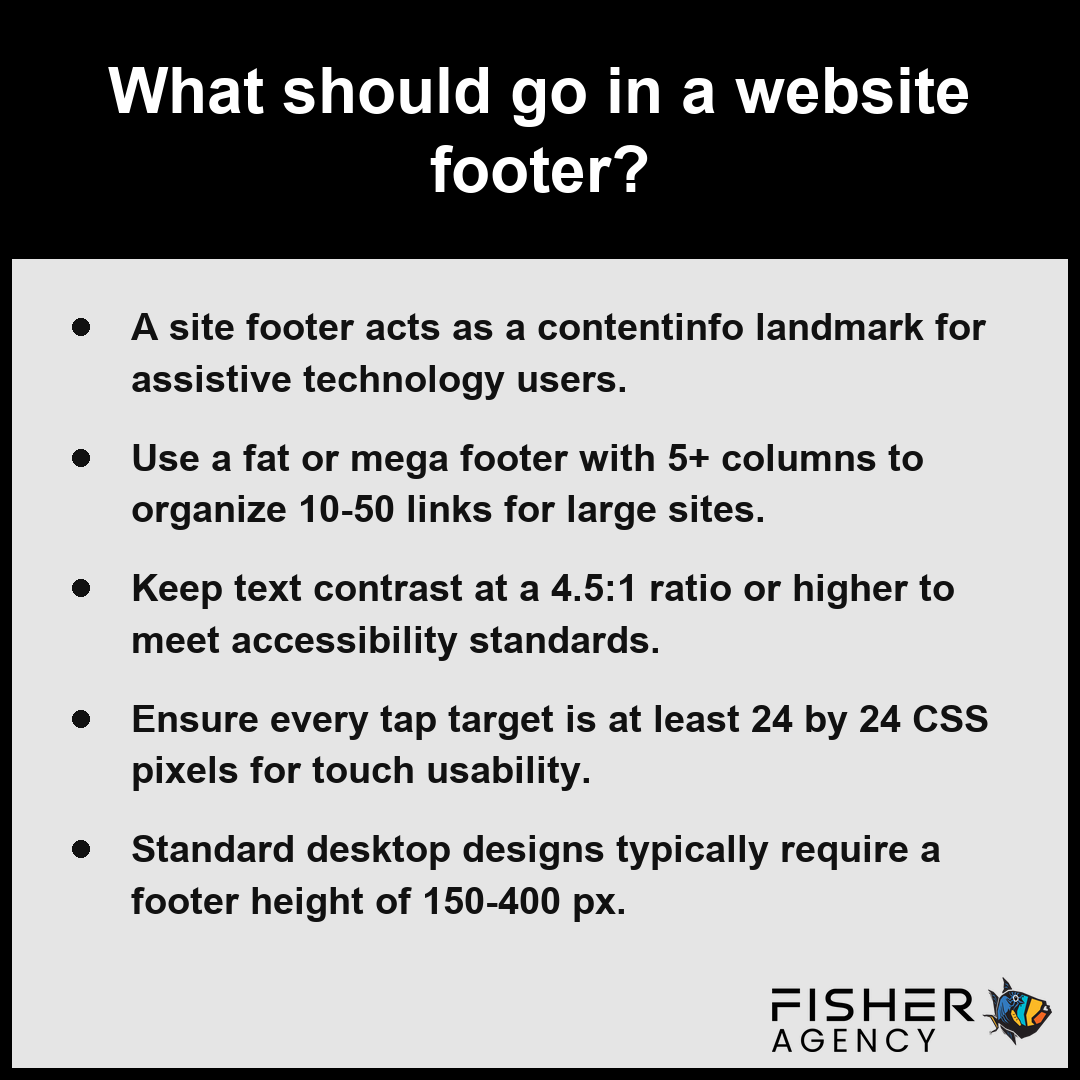
- A site footer acts as a contentinfo landmark for assistive technology users.
- Use a fat or mega footer with 5+ columns to organize 10-50 links for large sites.
- Keep text contrast at a 4.5:1 ratio or higher to meet accessibility standards.
- Ensure every tap target is at least 24 by 24 CSS pixels for touch usability.
- Standard desktop designs typically require a footer height of 150-400 px.
What Should Go in a Website Footer?
A website footer is the optimal location for utility information that visitors seek when they cannot find what they need in the primary navigation, serving as a comprehensive fallback for site exploration. Because a site footer acts as a contentinfo landmark, you should prioritize clarity and accessibility to ensure all users can efficiently locate essential business and technical details. Per World Wide Web Consortium, accessibility standards require that footer navigation be implemented with clear, semantic landmarks so that users of assistive technologies can reliably find and navigate through site maps or contact information.
| Footer Content Category | Functional Purpose | Accessibility & Compliance Requirement |
|---|---|---|
| Legal and Regulatory | Mitigates liability and informs data usage | Semantic landmark inclusion for screen readers |
| Contact Information | Establishes institutional trust and availability | Contrast ratio ≥ 4.5:1 for normal text |
| Utility Navigation | Facilitates recovery from navigation dead-ends | Logical focus order for keyboard users |
| Engagement Channels | Captures lingering visitor interest | Clear labeling for interactive icons/fields |
| Brand Essentials | Asserts copyright and intellectual property | High-contrast visual legibility |
Minimum WCAG Contrast Ratios
- Legal and Regulatory Documentation: Include links to your privacy policy link, terms of service, and any mandatory disclosures regarding data usage or sales practices.
- Contact Information: Display a physical address, support phone number, and a direct contact or inquiry email to establish institutional trust.
- Utility Navigation: Provide quick access to returns, shipping policies, careers, and site maps for users deep within your architecture.
- Engagement Channels: Place social media icons and newsletter signup fields here to capture interest from users who have reached the end of the main content.
- Brand Essentials: Maintain a visible copyright notice to clarify intellectual property ownership across your site.
Verify that your text contrast ratio meets the 4.5:1 minimum for normal text and 3:1 for large text to ensure these critical links remain legible for all visitors.
Follow these best practices to ensure your footer design optimizes user experience and site performance:- Include a sitemap link to improve crawlability for search engines and provide a bird’s-eye view for users.
- Ensure all social media icons utilize descriptive aria-labels to communicate their destination to screen reader users.
- Implement responsive design breakpoints to stack columns vertically on mobile devices for improved readability.
- Place the privacy policy and terms of service links in a visually distinct, bottom-most row to comply with global data protection standards.
What Is the Difference Between a Minimal, Standard, and Fat Footer in Website Design?
You define a minimal footer by its essential copyright and legal links, a standard footer by its balanced 150-400 px height containing core site navigation, and a fat footer by its expansive layout featuring 5 or more link columns with 10-50 links to provide comprehensive site architecture.
| Footer Classification | Vertical Allocation (px) | Structural Density | Primary Strategic Intent |
|---|---|---|---|
| Minimal Footer | 100 | Single-row brevity | Cognitive load reduction |
| Standard Footer | 150–400 | 3–4 link columns | Balanced information architecture |
| Fat Footer | 400+ | 5+ link columns | Comprehensive site navigation |
Footer Type Height (px)
How Does a Minimal Footer Work?
A minimal footer works by stripping the site footer down to its most essential utility, usually occupying only a single row. This design approach focuses on brevity, typically featuring a copyright notice and a very small selection of critical links like a privacy policy link or terms of service. According to NIST Human Factors Research, minimalist footer designs help reduce cognitive load by prioritizing essential legal disclosures, and because these footers require very little vertical space, they keep the focus entirely on your primary content.
What Makes a Standard Footer the Default Choice?
A standard footer is the default choice for most websites because it balances visibility with information architecture, typically utilizing 3-4 link columns to organize site-wide resources. This layout supports a desktop height between 150-400 px, providing enough room for contact details and navigation without overwhelming the visitor. You can evaluate the efficiency of these designs based on the following criteria:
- Accessibility: Ensures all text meets the 4.5:1 contrast ratio for normal text.
- Usability: Maintains tap targets at least 24 by 24 CSS pixels.
- Readability: Uses a standard font size range of 12-16 px.
When Does a Fat Footer or Mega Footer Make Sense?
A fat footer or mega footer makes sense when your site scale requires surfacing a large volume of information that cannot fit into standard navigation hierarchies. These layouts are common in complex e-commerce or publishing environments where users rely on the footer as a secondary directory.
How Many Link Columns Does a Fat Footer Need?
A fat footer or mega footer uses 5 or more columns, often with 10-50 links to provide comprehensive site access. While this density helps users find deep-level content, it requires careful organization to prevent the interface from feeling cluttered.
Analyze your user behavior analytics to determine if visitors are frequently searching for deep-link navigation before committing to the increased visual weight of a mega design.
When selecting the appropriate footer configuration for your site, consider these strategic implementation factors:- Prioritize the minimal footer for landing pages where conversion focus must remain strictly on the primary call to action.
- Utilize the standard footer to house supplementary navigation that users expect to find but do not need to access continuously.
- Deploy a fat footer to improve SEO by surfacing deep-link architecture that may otherwise be buried within secondary site layers.
- Ensure that regardless of the chosen height, the footer maintains sufficient color contrast for legal text to satisfy accessibility compliance standards.
How to Build a Footer Layout with Flexbox or CSS Grid and Collapse Columns on Mobile
Building a flexible footer layout relies on CSS Grid for complex, multi-column structural alignment and Flexbox for distributing individual alignment within those columns. You can maintain a clean site footer by transitioning from a multi-column desktop view to a vertical stack or an interactive accordion when the viewport narrows for mobile devices.
| Layout Component | CSS Mechanism | Mobile Adaptation Strategy | Accessibility Constraint |
|---|---|---|---|
| Footer Main Container | grid-template-columns | Collapse to 1fr stack | Maintain logical source order |
| Column Content Groups | display: flex | Vertical link alignment | 24×24 px minimum tap target |
| High-Density Link Sets | Conditional Visibility | Accordion toggle scripts | Prevent excessive scrolling |
| Text Elements | Color Contrast Ratio | Responsive legibility | 4.5:1 (Standard) / 3:1 (Large) |
Minimum Contrast Ratios (WCAG Standards)
- Define the site footer container using
display: grid, setting agrid-template-columnsproperty that allocates space for your link columns based on the required layout complexity. - Apply
display: flexto individual column containers to manage the vertical stacking and spacing of your internal links, ensuring each link meets the 24 by 24 CSS pixels minimum tap target size. - Use a media query to switch the
grid-template-columnsto1fr, forcing the layout to collapse columns into a single vertical stack when the screen width drops below your designated breakpoint. Per Web Accessibility Initiative, it is important to ensure that the logical source order of the document remains intuitive whenever content blocks are rearranged or collapsed for mobile viewports. - Implement hidden state toggles or accordion scripts if you have a fat footer, as collapsing 10-50 links into a vertical list can result in excessive scrolling for mobile users.
- Verify that the contrast ratio for all text elements maintains a minimum of 4.5:1 for standard text and 3:1 for large text to ensure accessibility across all device states.
Confirm that your collapsed mobile layout maintains clear visual separation between distinct link columns so that users do not confuse navigation categories after the stack occurs.
To enhance the maintainability and performance of your footer, consider these additional implementation best practices:- Use the
gapproperty on grid and flex containers to manage consistent whitespace without relying on margin hacks. - Implement
aria-labelattributes on navigation landmarks to distinguish the footer from other site sections for screen reader users. - Leverage
remunits for font sizes and spacing to ensure the footer layout respects user-defined browser zoom settings. - Apply
min-heightorpaddingto link groups to ensure that interactive elements remain accessible during rapid window resizing.
How to Keep a Footer at the Bottom of the Page When Content Is Short
Keeping a footer at the bottom of the page when content is short is best achieved by using modern CSS layout techniques that force the site footer to align with the viewport boundary rather than the end of the limited content. When your page body contains insufficient text or images to push the footer naturally to the bottom, the following steps will create a persistent floor for your design:
| CSS Technique | Primary Mechanism | Key Property/Value | Structural Role |
|---|---|---|---|
| Flexbox Layout | Vertical Expansion | flex-grow: 1 | Main content pusher |
| Flexbox Layout | Footer Stability | flex-shrink: 0 | Anchor constraint |
| Viewport Units | Height Normalization | 100vh | Container sizing |
| CSS Grid | Row Distribution | grid-template-rows: auto 1fr auto | Content segmentation |
- Set the height of the and elements to 100% to ensure they occupy the full available viewport space.
- Apply a flexbox display property to the element with a direction of column, which allows children to stack vertically.
- Assign a flex-grow value of 1 to your main content container so it expands to fill all available vertical space, effectively pushing the site footer down. According to Mozilla Developer Network, you can also use the 100vh viewport-percentage length unit to constrain a container to the full height of the window to support this alignment in modern browsers.
- Ensure the site footer has a flex-shrink value of 0, which prevents it from compressing or overlapping when the main container expands.
- Verify that no explicit height or absolute positioning is constraining the main container, as these can interfere with the vertical growth required to anchor the footer.
If you prefer using CSS Grid, you can achieve the same result by defining grid-template-rows as “auto 1fr auto,” which automatically allocates the remaining fractional space to the central content area. Check that your container elements do not have unintended margins that create an unwanted scrollbar when the site footer is forced to the absolute bottom of the screen.
To ensure your layout remains robust across various devices, consider these additional implementation considerations:- Apply
min-height: 100vhto the body to prevent content overflow issues on longer pages. - Reset the default browser margin on the
bodyelement to avoid unwanted scrollbars. - Use a CSS reset or normalize file to ensure consistent cross-browser box-model behavior.
- Avoid using absolute positioning for the footer, as it can overlap content when the viewport is resized.
Do Footer Links Help SEO or Can They Hurt Rankings?
Yes, footer links help SEO when used to guide search engines to high-value pages, but they can hurt your rankings if you use them to manipulate authority through keyword stuffing or excessive linking. Search engines view a site footer as a consistent navigation aid, meaning the internal links placed there carry weight across every page of your domain. While these links help establish site hierarchy and discoverability, stuffing them with non-contextual keywords or excessive commercial anchors can trigger spam filters and damage your visibility. Per Google Search Central, the excessive or manipulative use of footer links for keyword stuffing or creating artificial link schemes can result in manual actions or algorithmic devaluation of the pages involved.
| Footer Link Strategy | SEO Benefit | Risk Factor | Implementation Rule |
|---|---|---|---|
| High-Intent Utility Links | Enhances site hierarchy and discovery | Negligible | Focus on contact, shipping, and maps |
| Keyword-Rich Anchor Text | None | High (Manual action risk) | Use descriptive, natural language only |
| Large Volume Footer Lists | Low (Diluted PageRank) | Moderate | Keep link totals manageable and concise |
| Non-Contextual Keyword Sets | None | Critical (Algorithmic devaluation) | Strictly prohibit non-utility keyword stuffing |
To keep your search presence healthy, follow these best practices for implementing navigation within your site footer:
- Prioritize links to high-intent pages such as your contact details, shipping policies, and site maps.
- Avoid adding long lists of unrelated keywords that fail to provide genuine utility to your visitors.
- Ensure the number of links in a fat footer remains manageable, as search engines may discount the value of pages buried under too many total outbound links.
- Use descriptive, natural anchor text rather than strings of targeted keywords.
- Maintain a clean HTML structure so that bots correctly parse your navigation as a secondary content resource rather than as hidden or manipulative content.
Audit your current links to ensure every destination serves a clear, user-focused purpose rather than just acting as a vessel for keyword placement.
Follow these strategic guidelines to optimize your footer navigation without compromising search performance:- Limit the total number of links to a maximum of 10-15 to ensure efficient crawl budget allocation.
- Ensure all footer links are crawlable HTML text rather than JavaScript-rendered elements to guarantee indexation.
- Use consistent, descriptive anchor text that matches the header or title of the destination page for clear semantic signaling.
- Audit footer links quarterly to identify and remove broken URLs that create poor user experiences and crawl errors.
- Ensure your site’s primary navigation menu remains distinct from the footer to avoid redundant internal linking patterns.
Frequently Asked Questions
How tall should a website footer be on desktop?
A desktop site footer should typically be between 150 and 400 px tall for standard designs. While minimal designs use less space, large e-commerce or publishing sites often employ a fat footer or mega footer with five or more columns and up to 50 links, significantly increasing the vertical space.
How do you use the HTML footer element, and does it count as a contentinfo landmark?
You use the <footer> element to define a site footer for the entire page or a local footer within an article or section. When used at the page level, this element is exposed to assistive technology as a contentinfo landmark, which allows screen reader users to navigate directly to that specific footer.
Is a footer required by law, and which legal links such as privacy policy should it include?
Yes, a footer is the standard location for legally required information, including a privacy policy link and an accessibility statement. Depending on your jurisdiction and business type, you may also need to provide a link for users to opt out of the sale or sharing of their personal information.
What contrast ratio and tap target size should footer links meet for accessibility?
Footer links must meet a minimum contrast ratio of 4.5:1 for normal text and 3:1 for large text. For touch usability, ensure every tap target is at least 24 by 24 CSS pixels according to minimum standards, or 44 by 44 CSS pixels following recommended guidance for a mobile-friendly footer.
What is the best font size for footer text, and is 12 px too small?
The common font size range for a footer is 12 to 16 px, and using sizes below 12 px is discouraged because it hurts readability. You should maintain these standard sizes to ensure that your utility information remains legible for all users navigating your site footer.