

Flexible Grid Layout: Units, Column Count, CSS Methods, Breakpoints, Gutters, Width Formula, Common Pitfalls, Auto-fit Pattern, Testing, Maximum Width
A flexible grid layout is a page structure of proportional columns that resize to fit the width of any screen. Key aspects include column count, units, breakpoints, CSS methods, width formula, gutters, auto-fit pattern, common pitfalls, maximum width, and testing. You build it by dividing the page into a set number of columns and sizing each one with relative units such as percentages or fractions instead of fixed pixels. A width formula, which divides the target element width by the width of its container, gives you the percentage that keeps every column in proportion. Within website design, this approach lets one page adapt to phones, tablets, and desktop monitors, and it is a common topic when you search for web design companies near me Orlando FL. This article explains column count, units, the width formula, breakpoints, and the CSS methods you can use, including Flexbox and Grid, to put it all together.
Key Takeaways
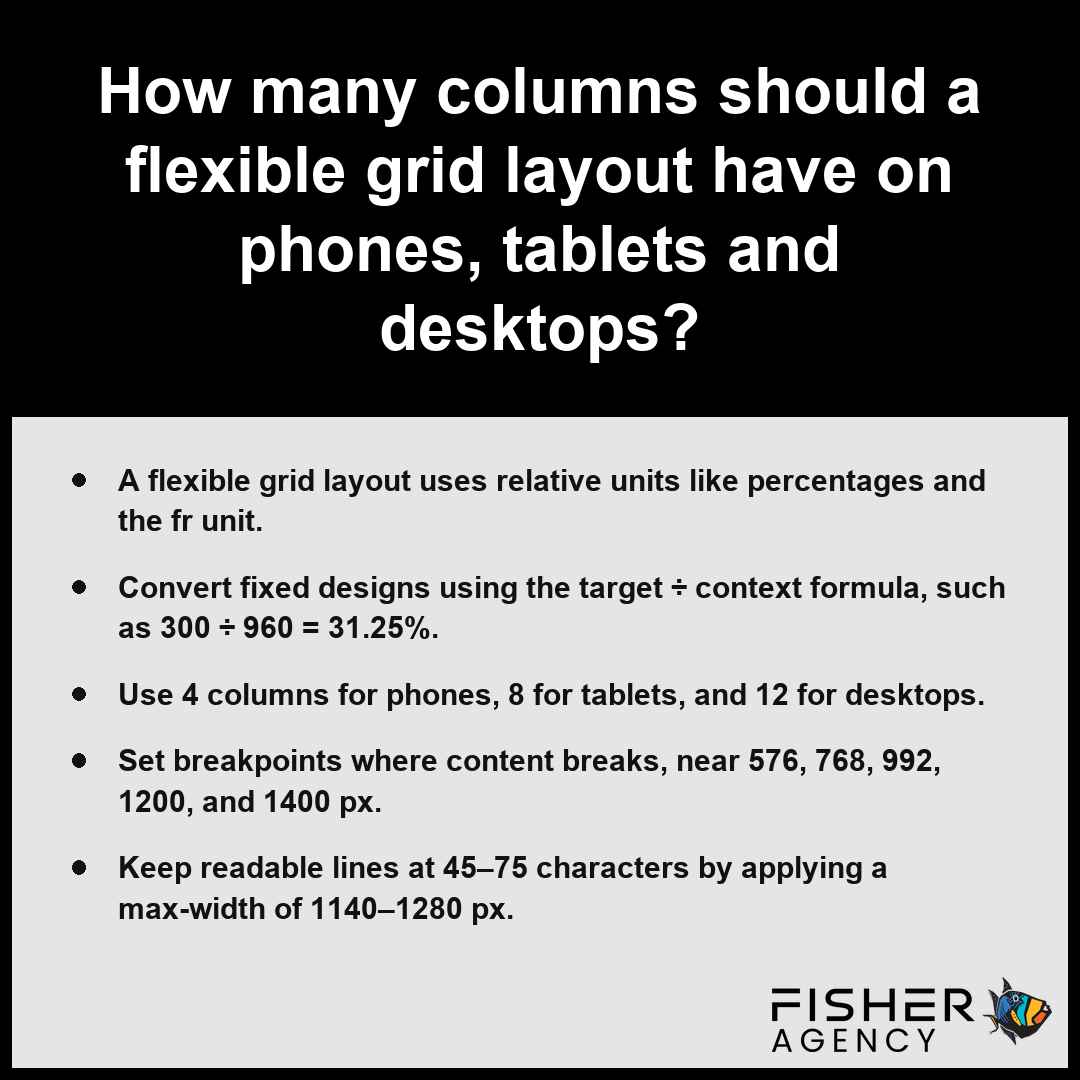
- A flexible grid layout uses relative units like percentages and the fr unit.
- Convert fixed designs using the target ÷ context formula, such as 300 ÷ 960 = 31.25%.
- Use 4 columns for phones, 8 for tablets, and 12 for desktops.
- Set breakpoints where content breaks, near 576, 768, 992, 1200, and 1400 px.
- Keep readable lines at 45–75 characters by applying a max-width of 1140–1280 px.
Should a Flexible Grid Layout Use Percentages, fr Units, rem or vw for Column Widths?
You should prioritize the fr unit within CSS Grid to manage your flexible grid layout for responsive web design, while using rem for gutters to ensure consistent spacing and reserving percentages or viewport-relative units for specific layout requirements where you must maintain precise proportions across the viewport.
| Unit Type | Primary Use Case | Relationship Basis | Responsiveness Behavior |
|---|---|---|---|
| fr | Modern Grid Allocation | Available Free Space | Distributes remaining container area dynamically |
| Percentages (%) | Legacy Layout Support | Parent Element Width | Calculates fixed-ratio based on container size |
| rem | Consistent Spacing/Gutters | Root Font Size | Scales with user browser accessibility settings |
| vw | Viewport-Relative Layouts | Full Browser Width | Resizes directly proportional to window dimensions |
Column Width Calculation Example (300px in 960px container)
Where Percentages and the fr Unit Fit Best
A flexible grid layout should use percentages or the fr unit depending on whether you require legacy compatibility or modern space distribution. Per the World Wide Web Consortium, the fr unit serves as the standard approach for distributing remaining free space among grid tracks by representing a fraction of the available area in a container. Percentages offer the most predictable control for legacy browser support, while the fr unit excels at allocating available space in modern CSS Grid architectures.
- Percentages: Fixed-ratio columns that calculate based on the parent width.
- fr unit: Dynamic divisions of leftover space, such as 1fr and 2fr creating a 1:2 split.
- Calculation: A 300 px column inside a 960 px container translates to 31.25% width (300 ÷ 960 = 0.3125).
Are rem and vw Safe Choices for Column Widths?
Yes, rem and vw are safe choices for column widths, provided you account for how they interact with the viewport versus the user’s base font size. While rem units remain tied to the root font size to improve accessibility, vw units relate directly to the full width of the viewport, which can lead to layout instability if gutters are not carefully managed.
Mixing Relative Units Without Breaking the Layout
You can successfully combine these units by ensuring that column widths maintain a logical relationship with the container. If you use vw for columns, you must verify that the layout does not trigger horizontal scrolling, especially when the user zooms in to 400% as defined by the WCAG 1.4.10 reflow standard. Mixing units often requires careful use of the calc() function to ensure that gutters and columns add up to exactly 100% of the horizontal space.
Pairing Relative Units with a max-width
You should pair your relative units with a max-width, typically between 1140–1280 px, to prevent your flexible grid layout from stretching beyond readable line lengths of 45–75 characters. This constraint ensures that the content remains comfortable to read on expansive desktop monitors while allowing the layout to retain its flexible nature on smaller viewports.
Test your implementation by resizing the browser window to the exact point where the content reaches your chosen max-width to confirm that the columns do not collapse unexpectedly.
Follow these best practices when implementing responsive grid systems to ensure optimal maintainability and performance:- Avoid mixing absolute units like pixels with dynamic units within the same grid track calculation to prevent layout overflow.
- Utilize the
minmax()function alongside thefrunit to establish safety constraints, such as defining a minimum column width that prevents text from collapsing. - Implement the
gapproperty for gutter management instead of margins to avoid the need for complex negative margin math or extra container padding. - Test layouts with increased browser zoom levels to confirm that your
rem-based spacing scales appropriately alongside your grid tracks.
How Many Columns Should a Flexible Grid Layout Have on Phones, Tablets and Desktops?
A flexible grid layout should typically have 4 columns on phones, 8 on tablets, and 12 on desktops to ensure content maintains a balanced visual hierarchy across different viewport sizes. Per Nielsen Norman Group, industry standards for flexible design often lean toward a 12-column system for desktop screens to facilitate versatile alignment while using fewer columns for mobile layouts to accommodate narrow viewports. Using these standardized column counts provides a reliable foundation that scales predictably, as 12 columns in particular offer high flexibility by dividing evenly into 2, 3, 4, and 6 segments.
| Viewport Tier | Grid Column Allocation | Primary Design Constraint | Horizontal Space Strategy |
|---|---|---|---|
| Phones | 4 Columns | Prevent vertical overextension | Optimize for narrow-width readability |
| Tablets | 8 Columns | Bridge mobile and desktop density | Introduce complex, balanced alignment |
| Desktops | 12 Columns | Enable high-density modularity | Maximize whitespace and sophisticated structure |
| Fluid Modules | Auto-fit (min 250px) | Eliminate fixed-count dependencies | Automatic scaling via repeat-fractional logic |
Standard Grid Column Counts
- Phones (4 columns): Accommodates limited horizontal space while preventing content from appearing cramped or vertically overextended.
- Tablets (8 columns): Offers sufficient room to transition from a single-column mobile view to a more complex layout without overcrowding the viewport.
- Desktops (12 columns): Allows for sophisticated, high-density layouts and sophisticated whitespace management typical of larger monitors.
- Adaptive Patterning: Utilize the repeat(auto-fit, minmax(250px, 1fr)) pattern to automatically generate as many columns of at least 250 px as the available space permits, effectively bypassing the need for manual column counts in simpler modules.
Test your design across various viewport widths to ensure the chosen column count does not force your content below the 320 CSS px reflow width required to prevent horizontal scrolling at 400% zoom.
Implementing these grid systems requires careful consideration of gutter widths and responsive breakpoints to maintain visual consistency:- Maintain consistent gutter spacing across all breakpoints to ensure rhythmic alignment between modules.
- Define explicit media query breakpoints (e.g., 768px for tablets, 1024px for desktops) to trigger grid re-calculation.
- Use fractional units (fr) in CSS Grid to allow columns to expand proportionally within their defined container.
- Apply max-width constraints on the container to prevent line lengths from becoming too long for comfortable reading on ultra-wide monitors.
How Do You Convert a Fixed Pixel Design Into a Flexible Grid Layout Using the Target ÷ Context Formula?
Converting a fixed pixel design into a flexible grid layout requires you to calculate relative values by dividing the target element width by its container width. This mathematical process ensures that every element maintains its intended visual proportion across any viewport size, transforming static designs into dynamic structures.
| Component Type | Target (px) | Context/Parent (px) | Calculation Formula | Final Relative Width (%) |
|---|---|---|---|---|
| Primary Column | 300 | 960 | 300 / 960 | 31.25% |
| Secondary Column | 480 | 960 | 480 / 960 | 50.00% |
| Layout Gutter | 20 | 960 | 20 / 960 | 2.08% |
| Sidebar Element | 150 | 960 | 150 / 960 | 15.63% |
Relative Layout Percentages
- Identify the width of the element you are measuring, which acts as your target.
- Identify the width of the immediate parent container, which serves as your context.
- Perform the calculation: target ÷ context = result. Per World Wide Web Consortium, the relative width of an element is calculated as an approximation by dividing the target pixel width by the context pixel width to derive a proportional percentage value. For example, a 300 px column inside a 960 px container becomes 300 ÷ 960 = 0.3125, or 31.25% width.
- Apply this result as a percentage value to your CSS properties, such as width, margin, or padding.
- Repeat this operation for gutters, ensuring they remain proportional to the column widths to prevent layout breakage.
Validate your math by resizing your browser window to verify that columns maintain their proportional size and do not trigger horizontal scrolling at smaller widths.
To implement these fluid calculations effectively in your CSS, consider these additional best practices:- Use the
box-sizing: border-box;property on all elements to ensure that padding and borders are included within your calculated percentage widths. - Apply max-width constraints to parent containers to prevent elements from stretching excessively on ultra-wide displays.
- Utilize relative units like
emorremfor typography alongside percentage-based layout widths to maintain proportional scale across zoom levels. - Test your fluid layout across multiple viewport breakpoints using media queries to adjust column counts when the parent container becomes too narrow for the intended design.
Is CSS Grid or Flexbox Better for Building a Flexible Grid Layout?
Neither CSS Grid nor Flexbox is inherently superior for building a flexible grid layout; rather, you choose between them based on whether your design requires one-dimensional alignment or two-dimensional structure. Per the World Wide Web Consortium, CSS Grid is generally categorized as a system for two-dimensional layouts of rows and columns, whereas Flexbox is optimized for one-dimensional layouts along a single axis. CSS Grid is designed for full-page, two-dimensional control over both rows and columns, while Flexbox excels at one-dimensional distribution along a single axis.
| Feature | CSS Grid | Flexbox |
|---|---|---|
| Dimensionality | Two-dimensional | One-dimensional |
| Primary Use | Overall layout structure | Component alignment |
| Gutter Control | Native with gap property | Native with gap property |
| Item Sizing | fr unit available | Flex-basis available |
You will often find the most success by nesting these technologies within one another. Use CSS Grid to define the overarching master structure of the viewport, then use Flexbox to align content blocks or buttons within those grid cells. For example, applying repeat(auto-fit, minmax(250px, 1fr)) via CSS Grid allows your main container to manage multiple columns efficiently without media queries, while internal content components rely on Flexbox to handle specific wrapping or alignment needs. Evaluate your design complexity to determine if you need the rigid row-and-column alignment of CSS Grid or the flexible, content-driven flow of Flexbox for your layout elements.
Test your layout by resizing the browser to ensure the nested elements maintain their intended relationship before moving to higher-level container breakpoints.
To determine which technology best suits your specific layout requirements, consider these additional implementation factors:- Use Grid when your layout relies on source-order independence, allowing you to rearrange items visually without altering the underlying HTML structure.
- Choose Flexbox when your design necessitates content-based sizing, where the element size is primarily determined by its internal text or image content.
- Opt for Grid to establish consistent alignment across multiple independent rows and columns simultaneously.
- Select Flexbox for simple navigation bars, vertical centering of elements, or dynamic wrapping of items that lack a fixed coordinate system.
Which Breakpoints Should a Flexible Grid Layout Use: Devices or Content?
Breakpoints for a flexible grid layout should be defined by content requirements rather than specific device models to ensure a high-quality display. Per the Interaction Design Foundation, responsive design principles suggest that these breakpoints should be triggered by the content’s natural layout limitations rather than the dimensions of popular mobile or desktop devices. Basing your layout transitions on when the content naturally breaks, such as when lines of text become too long for comfortable reading or when elements no longer fit side-by-side, allows the site to remain functional across the broad spectrum of viewport sizes. While common industry standards provide helpful reference points, your primary focus should be the aesthetic and functional integrity of your specific interface.
| Breakpoint Threshold | Primary Viewport Classification | Structural Grid Strategy | Readability/Constraint Objective |
|---|---|---|---|
| 576 px | Small Handheld | Single-column vertical stack | Optimize touch targets and vertical scrolling |
| 768 px | Tablet | Transition to 8-column grid | Balance multi-element placement with touch comfort |
| 992 px | Large Tablet / Small Laptop | Expanded fluid layout | Intermediate scaling for diverse device ratios |
| 1200 px | Desktop | 12-column grid system | Maximize horizontal real estate for complex interfaces |
| 1400 px | Wide Desktop | Fixed max-width container | Maintain 45–75 character line length for legibility |
Responsive Layout Breakpoints (px)
- 576 px: Typically marks the transition for small handheld devices where single-column layouts predominate.
- 768 px: Often serves as the threshold for tablets, allowing for a shift from a 4-column to an 8-column structure.
- 992 px: Acts as an intermediate stage for larger tablets or smaller laptops.
- 1200 px: Frequently chosen as the transition to a 12-column desktop grid where the layout expands significantly.
- 1400 px: Represents the upper tier of desktop viewports, often where a max-width of 1140–1280 px is applied to maintain a readable line length of roughly 45–75 characters.
Test your layout by slowly shrinking the browser window to identify the exact width where your content alignment fails or your line lengths become unreadable.
To optimize the implementation of these responsive breakpoints, follow these technical best practices:- Use CSS media queries with relative units like ’em’ or ‘rem’ instead of ‘px’ to account for browser-level text scaling settings.
- Prioritize a mobile-first approach by writing base styles for the smallest screens and layering overrides as viewport widths increase.
- Implement fluid typography to ensure line length remains between 45 and 75 characters regardless of the specific container width.
- Test layouts using CSS inspection tools to identify “content breakage” points where horizontal scrolling or layout overlap occurs.
Frequently Asked Questions
What gutter size works best in a flexible grid layout, and how do you make it scale with clamp()?
Common gutter sizes for a flexible grid layout range from 16–32 px, which is about 1–2 rem. You make them scale by using the clamp() function, which sets a fluid range between a minimum, preferred, and maximum value to ensure your spacing stays proportional as the viewport changes size.
How does repeat(auto-fit, minmax(250px, 1fr)) create a flexible grid layout without media queries?
The repeat(auto-fit, minmax(250px, 1fr)) pattern creates a flexible grid layout by instructing CSS Grid to place as many columns of at least 250 px as will fit in the available space. The fr unit automatically distributes leftover space, allowing columns to expand or wrap without needing a media query.
What max-width should a flexible grid layout container have to keep line length readable?
A flexible grid layout container should have a max-width of 1140–1280 px to maintain a readable line length of roughly 45–75 characters. This constraint prevents text from stretching too far across large monitors, which improves readability and keeps your content within a comfortable visual area for the user.
Why does my flexible grid layout overflow or break, and how do I fix padding, nested percentages and wide images?
Your layout overflows because fixed pixel widths or added padding force elements outside their container. To fix this, use relative units like percentages or the fr unit for sizing. Ensure you use the meta viewport tag to prevent mobile browsers from rendering at 980 px and shrinking your entire page.
How do you test a flexible grid layout across phone, tablet and desktop widths and 320 px reflow?
You test a flexible grid layout by checking standard breakpoints near 576, 768, 992, 1200 and 1400 px, and ensuring content reflows at 320 CSS px to meet WCAG 1.4.10. Verify that your 4-column phone, 8-column tablet, and 12-column desktop configurations display correctly without requiring horizontal scrolling at 400% zoom.